System requirements before installing
Prepare the requirements below for the signed GameBotOps installation and automation. The application can open before LDPlayer is installed; running accounts requires the emulator and display settings to be ready.
- Windows 10 22H2 or Windows 11 (x64). This is a desktop Windows application; there is no version that runs on a phone.
- TPM 2.0. The license binds to a non-exportable device key, and that key is generated on the TPM.
- LDPlayer 14. It must be set to 1280 × 720 resolution and DPI 240.
- Local ADB access. Tap and swipe commands are sent to the emulator over ADB.
How to check whether you have TPM 2.0
Press the Windows key together with R, type tpm.msc into the Run dialog and press Enter. If the "Specification Version" line reads 2.0, the requirement is met. If you see "Compatible TPM cannot be found", the TPM is most likely disabled in your BIOS/UEFI settings and has to be enabled there.
Where do you download the Clash of Clans bot?
GameBotOps is not distributed through a public download link, and that is deliberate. The installer is tied to a license; after an access request the hardware compatibility is checked and the package is delivered directly.
The reason is both license integrity and installation quality. If the emulator settings are wrong the recognition layer misbehaves and the user concludes the product is broken. Installing with support removes that problem at the source.
Step-by-step installation
- Send an access request. State your profile count and your goal. Windows version, TPM status and emulator compatibility are checked together.
- Install and configure LDPlayer 14. Set the resolution to 1280 × 720 and DPI to 240, enable local ADB debugging and restart the emulator.
- Install Clash of Clans in the emulator. Install the official, unmodified build through the Play Store. Do not use a patched APK; it breaks recognition and raises detection risk.
- Run the signed GameBotOps installer. Complete setup with the supplied GameBotOpsSetup.exe package, then open the application from its shortcut. New releases are managed through the in-app update panel.
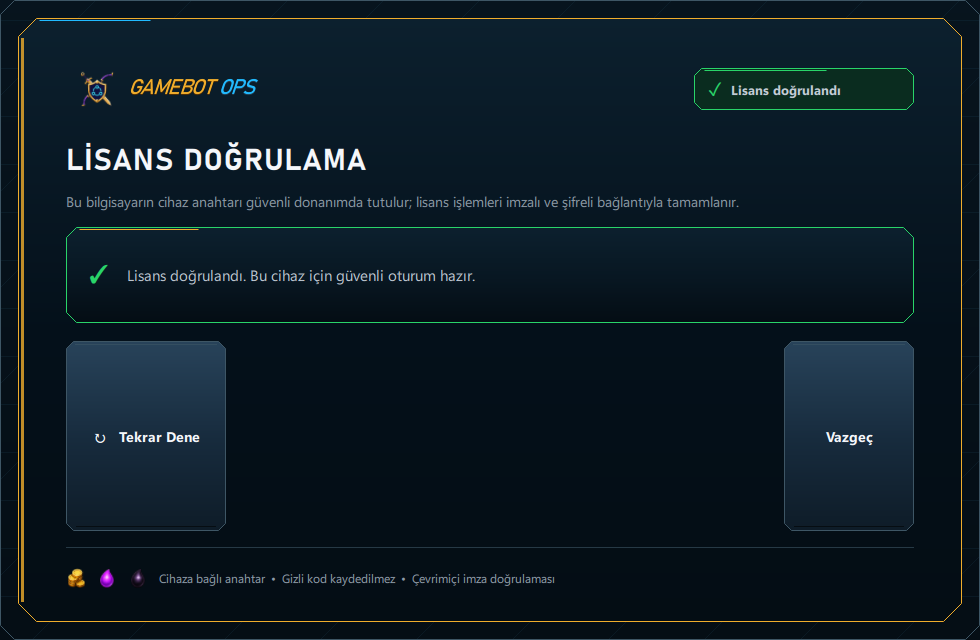
- Activate the license. When the activation code is entered a signed online verification runs. The code is never written to the client disk.
- Add accounts with Scan LDPlayer. The installed LDPlayer is detected automatically. Select accounts, set their order and choose a working mode in the dashboard without editing configuration files.
- Run a test round with a single profile. Watch the first round and confirm that recognition and the attack flow behave as expected.
Automatic GameBotOps updates
The signed installation checks for new GameBotOps releases at startup and in the background while the app is open. An eligible release downloads automatically, with package integrity and publisher signatures verified. The license screen and dashboard show progress, the target version and retry status.
- Follow download progress. Wait for the automatic check or choose Check for updates. Interrupted downloads are retried; an eligible partial package can resume from where it stopped.
- Choose Update and restart. Installation starts when you request it. New account starts are held while active work reaches a safe stopping point and the current emulator closes.
- Continue with the new release. The app reopens and verifies the license online. Remaining fleet work can resume when the saved plan, account selections and restart conditions are still valid.
If a safe shutdown cannot be completed, the update is not installed and the panel shows the issue. An active battle is allowed to reach its safe completion point.
Settings, accounts and repair
Account records, fleet order, working preferences, last resource readings and logs are stored with your Windows user data. Updating application files does not reset these records. The license remains tied to the same device identity.
Recovery and repair handle interrupted installations or unsuccessful starts. Use the trusted GameBotOpsSetup.exe installer for repair when required. If you use an older portable folder, move to the signed installation to use in-app updates.
Why the LDPlayer settings matter so much
An image-based bot decides by matching templates it sees on screen. When resolution or DPI changes, the interface scales; buttons, counters and resource fields land at different sizes. Template matching weakens, and the bot either believes it is on the wrong screen or skips the step.
The 1280 × 720 / DPI 240 combination is the reference point for calibration. Calibration needs to be checked again if the game image resolution, DPI or interface scale changes.
The most common installation problems
ADB will not connect. Local ADB debugging must be enabled in LDPlayer settings. Some antivirus products block the ADB bridge.
License verification fails. An internet connection is required at startup. On corporate networks or behind a VPN the signed verification request can be blocked.
The bot taps the wrong place. This is almost always resolution or DPI. Verify the emulator settings first, then redo the calibration.
To understand how the product works before installing, see what a CoC bot is; for account exposure see the ban risk page.
Languages, game updates and event updates
The dashboard and supported game controls work in Turkish and English. Change the dashboard language immediately in application settings. Required game updates are handled through Google Play at startup; current bot releases for event compatibility are available during your license term. Explore event support and updates.